Image · Reference · Movement

Kling Motion Control Video Generator

Pair a character image with reference movement, then choose the framing and scene.

Create your video

Character image
Motion reference video

This tool currently accepts 3–20 seconds.

Choose the image or motion video as the orientation reference.

0 characters
Kling 2.6 StandardFrom 30 credits

Add a motion video for the estimate. Minimum 5 seconds × 6 credits/s.

Sign in to submit your prepared inputs.

Files upload only when you generate. Reloading clears selected inputs.

What Is Kling Motion Control?

Kling Motion Control combines image appearance with video movement. On Kling40AI, choose version, tier, orientation, sound, and optional direction.

Exact replication is not guaranteed. Compare limbs, turns, and object contact against the reference.

Kling Motion Control Examples

Compare two Kling Motion Control Pro results made with the same character image, four-second motion reference, and scene direction. Follow the hand and cup through the action; these examples do not establish which version is generally better.

Example 01

Cup placement · Kling 2.6 Pro

Kling 2.6 Pro uses the supplied character frame and reference clip for a small cup-placement action. Compare the fingers, cup, and saucer against the motion reference.
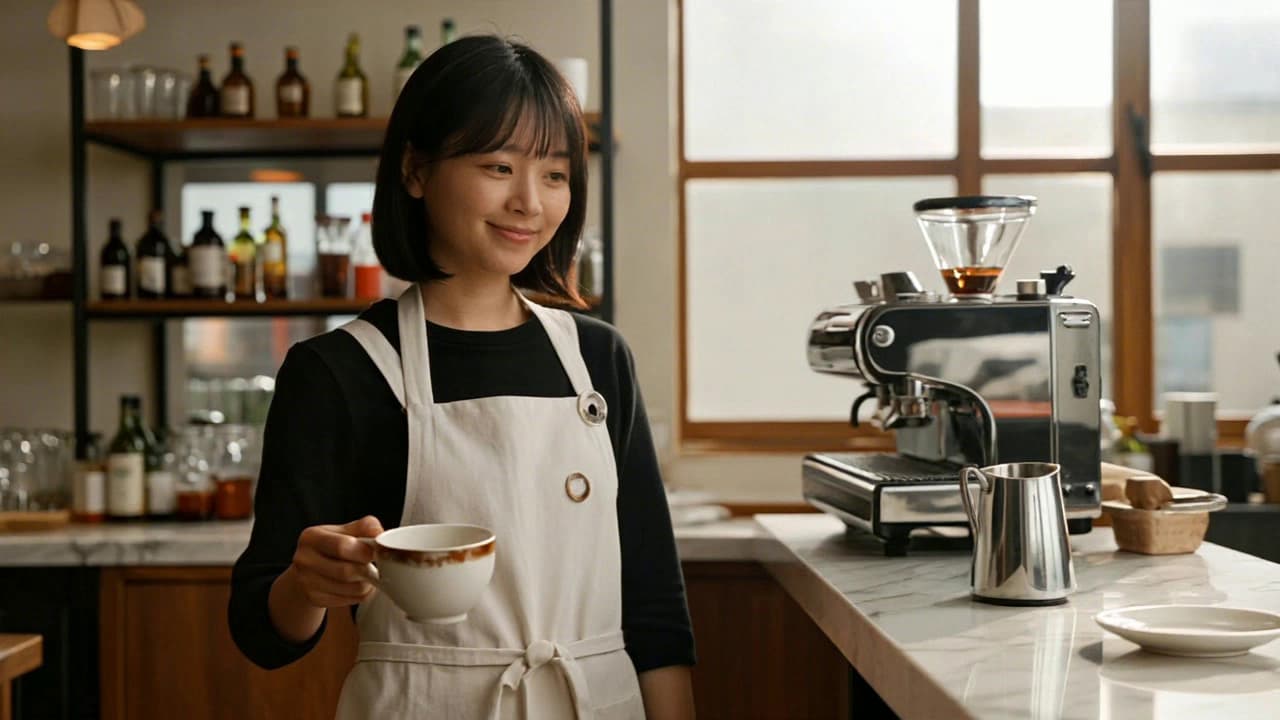
Character image
Reference input: a barista holding a cup in a cafe; not a Kling Motion Control output. Input frame from a team-generated Seedance 1.5 Pro clip; not a Kling output.

Input frame from a team-generated Seedance 1.5 Pro clip; not a Kling output.

Motion reference

Input clip generated with Seedance 1.5 Pro; not a Kling output.

Result video

Kling 2.6 Pro · 3.73s · No audio.

The cup moves toward the saucer while the cafe setting remains recognizable; this example has no audio.

Prompt used
The barista calmly moves the coffee cup toward the counter. Keep the cafe setting and camera steady.

Example 02

Cup placement · Kling 3.0 Pro

Kling 3.0 Pro uses the same character image, source movement, and scene prompt. Review the hand and cup through this Kling Motion Control result, including their final position and contact with the counter.

Character image
Reference input: a barista holding a cup in a cafe; not a Kling Motion Control output. Input frame from a team-generated Seedance 1.5 Pro clip; not a Kling output.

Input frame from a team-generated Seedance 1.5 Pro clip; not a Kling output.

Motion reference

Input clip generated with Seedance 1.5 Pro; not a Kling output.

Result video

Kling 3.0 Pro · 3.73s · No audio.

The hand and cup follow the reference action toward the counter; this example has no audio.

Prompt used
The barista calmly moves the coffee cup toward the counter. Keep the cafe setting and camera steady.

Image and Motion Video Requirements

Add an image and readable 3–20-second video. This range applies to this tool.

Inputs, parameters, and limits
ParameterPurpose and limits
Character imageRequired. Show the relevant body parts with room for movement.
Motion videoRequired. Check the 3–20-second clip for obscured or cropped movements.
DurationMeasured from the video; rounded up to whole seconds, with a 5-second minimum.

Kling Motion Control Settings

These controls guide the result without guaranteeing a particular appearance.

Available controls and their purpose
ParameterPurpose and limits
Version and tierKling 2.6 or 3.0, Standard or Pro; each combination has its own rate.
Character orientationUse the image or video as the character’s orientation reference.
Original soundRetain reference audio. Available only after selecting a valid video.
Scene promptOptional expression, setting, or visual direction supporting the source action.
Negative promptOptional unwanted details; exclusion is not guaranteed.

How to Use Kling Motion Control

  1. 01

    Select a version

    Choose the version and tier; check its rate.

  2. 02

    Prepare the inputs

    Preview both inputs; replace or remove either independently.

  3. 03

    Set the controls

    Set orientation, sound, and optional prompts. Check duration and credits.

  4. 04

    Generate and compare

    Sign in and submit the Kling Motion Control task; compare its result with the reference.

Kling Motion Control Prompt Tips

Support the reference with scene direction and optional unwanted details. Both prompts can stay empty; choose suitable movement first.

Suggested prompt

A relaxed greeting

A character gives a relaxed greeting against an uncluttered background. Keep framing steady; allow hand movement.

Use scene direction to support the clip’s movement.

Suggested prompt

A controlled turn

A composed character turns in a softly lit studio. Keep the silhouette clear and allow head movement.

Suggested direction; check the resulting face and clothing.

Kling Motion Control Use Cases

Use Kling Motion Control for gestures, brand characters, or storyboard rehearsal. Check hands, overlapping limbs, and final poses; use authorized inputs.

For text-led scenes or several references, compare the Kling 4.0 workspace; motion input defines this workflow.

Kling Motion Control Pricing

Kling Motion Control bills measured reference duration, rounded up to whole seconds with a 5-second minimum, at the selected rate.

Check your balance and quote. See credit packs and site terms; verify failed-task charges against actual balance changes.

Customer credit rates · 5-second minimum
VersionRate and examples
Kling 2.6 Standard6 credits/s · minimum 30 credits · 10 seconds 60 credits
Kling 2.6 Pro10 credits/s · minimum 50 credits · 10 seconds 100 credits
Kling 3.0 Standard12 credits/s · minimum 60 credits · 10 seconds 120 credits
Kling 3.0 Pro15 credits/s · minimum 75 credits · 10 seconds 150 credits

Kling Motion Control FAQ

Which versions can I choose?

Kling Motion Control offers Kling 2.6 and 3.0, Standard or Pro, with rates shown in the selector.

What does character orientation select?

Choose the image or motion video as orientation reference.

Can I keep the source sound?

Yes. Add a valid video and enable Keep original video audio. Removing it clears this choice.

Are both prompt fields required?

No. Both prompts are optional; the image and video are required.

What duration does this tool accept?

This tool accepts readable 3–20-second videos, with a 5-second minimum charge.

How do I inspect a failed task?

Read the preview’s error and check your balance change. Close it to return to examples.