
Kling 2.5 Turbo
HistoryImproved prompt following and motion for text- and image-led scenes.
- Text and image inputs
- Improved dynamic motion
- Stronger style consistency
Describe a shot for the Kling 4.0 AI video generator. Add references or keyframes when they help shape the result, then generate, preview, and download your clip in the workspace.
Kling version evolution
Kling 4.0 is the default in the AI video generator above. See how the model family developed and which tools you can use here.
Improved prompt following and motion for text- and image-led scenes.
Brought speech, sound effects, and ambience to the AI video generator.
The AI video generator gained multi-shot storytelling, more consistent references, and multilingual audio.
Kling 4.0 adds longer scenes and more control through references and keyframes.
Dates mark selected model releases. Each card lists the settings available on this site separately.
Published comparison examples
Kling 4.0 and 3.0 received the same lighthouse prompt. Watch both clips to see how each AI video generator handles framing, motion, and continuity. The full comparison includes four paired short tests.
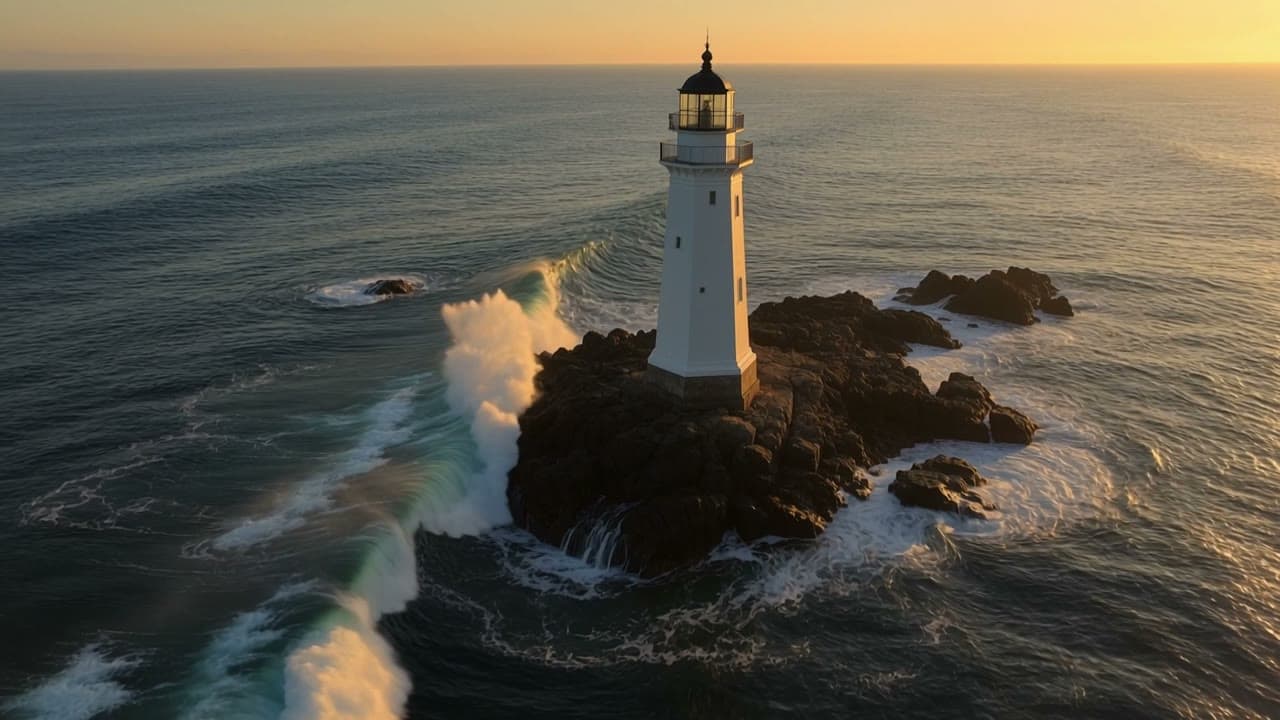
The Kling 4.0 AI video generator shows the lighthouse from above as the camera approaches. Watch how the aerial viewpoint, moving waves, and silhouette hold together throughout the shot.
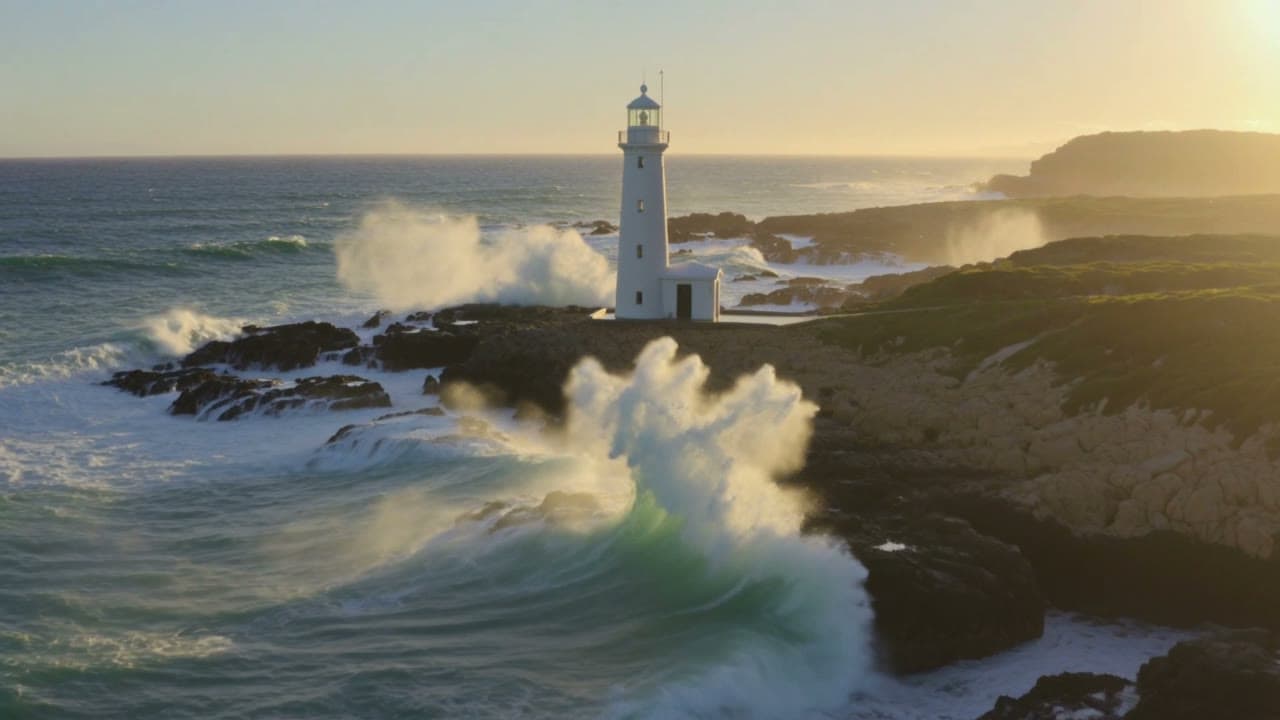
See how the Kling 3.0 AI video generator interprets the same camera instructions. Look at perspective, coastline detail, and water movement across the full clip.
Shared lighthouse prompt
A cinematic aerial shot of a white lighthouse standing on a rugged rocky coastline during golden hour. Powerful ocean waves crash against the dark rocks, sending white sea spray into the air. The camera slowly moves forward toward the lighthouse while maintaining a smooth, stable aerial perspective. Natural ocean physics, realistic foam movement, consistent lighthouse architecture, atmospheric sunlight, detailed coastal landscape, cinematic realism, 16:9.
Capabilities and practical value
Start the Kling 4.0 AI video generator with text alone, or guide the shot with references or keyframes. The bottle clip below shows what a single prompt can produce.
Kling 4.0 example 5s
Result

Watch for: In this five-second clip from the Kling 4.0 AI video generator, warm studio light moves across an amber bottle as the camera pushes in. Watch the silhouette and reflections throughout the shot.
Plan a beginning, action, and ending for a 3–30-second clip in the Kling 4.0 AI video generator. Test the hardest movement in a short take first to save credits and review time.
When you test an AI video generator on a sports or action scene, check foot contact, collisions, water, and body mechanics. Kling 4.0 aims for more lifelike motion throughout the shot.
The published Omni Reference limits for the Kling 4.0 AI video generator include 10 images, five videos totaling 30 seconds, and seven subject Elements. Images, videos, subjects, and voice references share a 15-asset cap.
Use up to 10 keyframes to guide the Kling 4.0 AI video generator. Anchor meaningful changes and describe the movement between them. Choose a tracking shot, orbit, push-in, or pull-back with a clear purpose. Compatible poses and viewpoints help the shot transition between frames.
The broader Kling 4.0 feature set includes footage recreation and targeted edits. This AI video generator offers reference guidance. Dedicated recreation and editing controls are unavailable here. In your prompt, say what should change and what should stay recognizable.
If the AI video generator returns sound, check speech timing, unwanted sounds, and abrupt changes before editing. In Kling 4.0, choose either MP3/WAV guidance or Keep original video audio. Saved Elements controls are unavailable here.
Model information versus workspace settings
Compare the output settings in the AI video generator with Kling 4.0's published capabilities as of October 26, 2026.
| Capability | What to expect here |
|---|---|
| 720p / 1080p | Both are selectable in the Kling 4.0 AI video generator here. The published feature page still labels 1080p coming soon. |
| 4K and 10-bit HDR | Described as forthcoming; neither has a selection here. |
| Video Extension | The Kling 4.0 feature page describes forward and backward continuation to two minutes. This AI video generator has no extension control. |
| Elements, voice, targeted editing | Broader model features; no dedicated controls here. |
Prepare compatible material
Before uploading to the AI video generator, add up the duration of your reference videos. Kling 4.0 checks their combined length before generation.
| Setting | Supported here |
|---|---|
| Reference files | Up to 10 PNG/JPEG images, 5 MP4/MOV videos, and 3 MP3/WAV audio files; 15 assets total; 100 MiB per file |
| Reference video duration | Up to 30 seconds total across all video files |
| Video dimensions | The Kling 4.0 AI video generator requires at least 700 pixels on the shortest side. |
| Keyframes | First image required; up to 8 middle images and an optional last image |
| Keyframe total | Output seconds plus one, capped at 10 images |
| Framing | Text: 16:9, 9:16, 1:1, 21:9; Reference adds Auto; Keyframes uses Auto |
A three-second keyframe task allows four images. Use compatible framing and subject appearance across anchors. The Kling 4.0 AI video generator requires a prompt of up to 8,000 characters in every mode.
Choose the workflow, then compare results
Choose an AI video generator with the inputs, clip length, and output settings your shot needs.
| Setting | Kling 3.0 | Kling 4.0 |
|---|---|---|
| Inputs | Text or one image | Text, image/video references, keyframes |
| Duration | 5 or 10 seconds | 3–30 seconds |
| Output controls | Standard or Pro | 720p or 1080p |
| Audio | Optional audio via Generate audio | Output can include audio |
| Cost basis | Tier × output seconds | Resolution rate × billable seconds |
The Kling 4.0 comparison covers lighthouse, ballet, watch, and pottery scenes. The paired clips show how each AI video generator handled a specific prompt and set of controls.
Define a usable outcome
Give the Kling 4.0 AI video generator a clean reference for a product reveal. Check the shape, reflections, and labels in the result. Add precise promotional text in editing.
Give the AI video generator one clear action for a vertical clip. Plan a recognizable opening and leave room for captions. Check the Kling 4.0 result on a phone with the sound off.
Storyboard a Kling 4.0 sequence one shot at a time. Give the AI video generator compatible references or keyframes for important moments. Check identity, hands, transitions, and scene geography across clips.
A short loop from the Kling 4.0 AI video generator can give a music video a visual motif. Build around a mood, recurring subject, or camera move and align the cuts and transitions with your track in editing.
Ask the Kling 4.0 AI video generator to illustrate one step or concept per clip. Verify the visual details and add accurate labels in editing.
Preview how a proposed room feels in motion with an AI video generator. Give Kling 4.0 consistent room references, then check the lighting, camera path, geometry, and materials.
From brief to finished clip
Write a Kling 4.0 prompt with a subject, one clear action, a setting, and a camera move. Leave Omni reference selected to use the AI video generator with text alone.
Add images, videos, or MP3/WAV audio with +. The AI video generator detects file types automatically. Hover over an image or video thumbnail to preview it. In Kling 4.0 Keyframes, upload a First frame, any Middle frames, and an optional Last frame.
Open Video settings in the Kling 4.0 AI video generator. Choose 720p or 1080p, a 3–30-second clip, and an aspect ratio. Keyframes uses Auto. Choose a specific ratio for audio-only references.
Sign in and check the estimate beside Generate against your credit balance. Select Generate to send your draft from the AI video generator to the full Kling 4.0 workspace. Follow the on-screen guidance and track the task in History.
One-time credit packs let you use the Kling 4.0 AI video generator at your own pace. Purchased credits never expire.
Start with a few video ideas or your first project.
USD · one-time payment
Make weekly content and try more versions of each idea.
USD · one-time payment
Make more business and client videos at our lowest cost per credit.
USD · one-time payment
Unsure how many credits the AI video generator will use? Compare credit rates
Access, costs, and decisions
Finish in the full Kling 4.0 workspace. After signing in, select Generate in the AI video generator to open your draft there and follow the task.
Yes. New accounts receive free credits to try Kling 4.0. Sign in to check your balance and the estimate beside Generate. Your settings and references affect how many videos you can make.
Without video references, the Kling 4.0 AI video generator costs 6 credits per second at 720p or 10 at 1080p. Reference-video duration also counts toward billing. Enter your inputs and sign in to see the estimate beside Generate.
No. Leave Omni reference selected and describe your shot. Kling 4.0’s Keyframes mode requires a First frame image.
Yes. The AI video generator accepts PNG/JPEG images, MP4/MOV videos, and MP3/WAV audio. Add files with + and keep audio clips between 5 and 30 seconds. See Kling 4.0 Input Limits above for file counts and sizes.
The Kling 4.0 AI video generator offers clips from 3 to 30 seconds at 720p or 1080p. Use Video settings to set the aspect ratio. Keyframes uses Auto framing.
Timing varies. Once the AI video generator starts processing, follow your Kling 4.0 task in History or check My Creations. Wait for the result before retrying, since each new generation uses credits.
Yes. Play your finished Kling 4.0 clip in the workspace, then select Open / download video. You can also find it in My Creations for six months.
Draft the first shot of your project in the AI video generator. You can review the clip in the Kling 4.0 workspace once it is ready.